
JUPYTERLAB Portable : Test and Review
Follow us on Twitter 
Question, remark ? Contact us at contact@myengineeringtools.com
1. Introduction
2. Characteristics and Download
3. Running JUPYTERLAB Portable
1. Introduction
MyEngineeringTools.com has listed several portable and online Python solutions for Engineers who don't want to make a full install on their computer. One of the most interesting distribution we found is JUPYTERLAB Portable. This page is giving more information on JUPYTERLAB Portable for people who would like to use it, how to download it, how to run it, who to install new packages. We give also our view on this portable distribution.
Note that the same editor is also proposing 2 other distributions :
- Edupyter
- PYTHON Portable
We have chosen to focus on JUPYTERLAB Portable as it should be the distribution that Engineers will favor, due to the Jupyterlab environment and several libraries pre-installed, however you can also try the other distributions following almost each of the steps described on this page.
| Are you interested in AI ? You can also check more resources about ChatGPT on MyEngineeringTools.com : ChatGPT : All reply output formats ChatGPT can doChatGPT : 10 useful prompts for Engineers |
2. Characteristics and download
2.1 JUPYTERLAB Portable characteristics
| Editor / Maintenance | portabledevapps.net |
| App name | Jupyterlab portable |
| IDE | Jupyter-lab |
| Features (as of redaction of this page) | Python kernel > 3.9 Jupyter-lab Pre-installed package common in Engineering use such as Matplotlib, Pandas Numpy |
| Size | 94 Mo compressed 511 Mo decompressed |
2.2 JUPYTERLAB Portable download
In order to download JUPYTERLAB Portable, you can follow these steps :
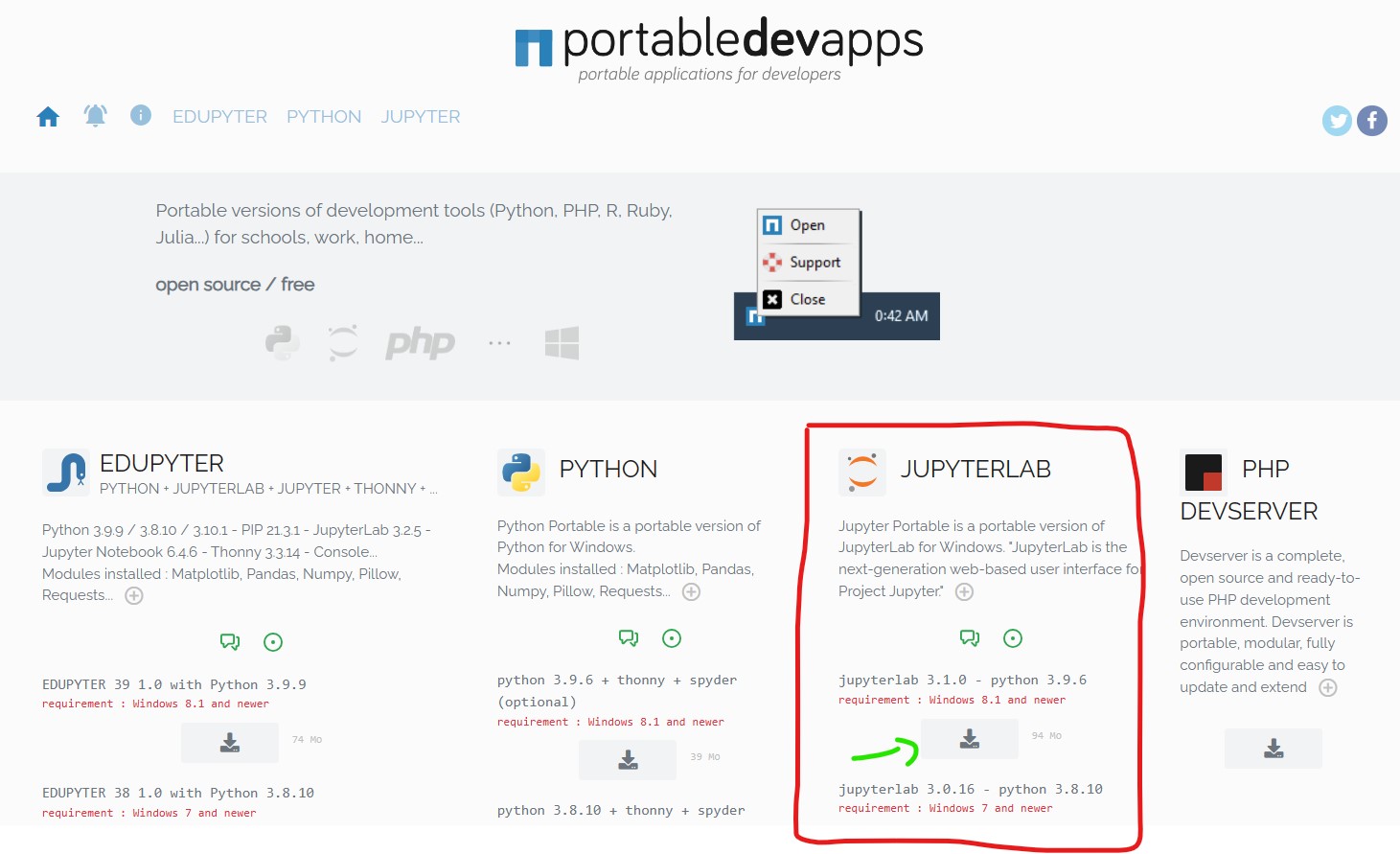
- Connect to the editor's website : Portable Dev Apps | Portable Applications for Developers
- You can download different Python portable version, in our case it is JUPYTERLAB Portable but you can also chose Edupyter or PYTHON Portable. You have 2 versions to chose from :
- Windows 8.1+
- Windows 7+
- When you click on the download button you are sent to another page where the file downloading will start
3. Running JUPYTERLAB Portable
After clicking the download button, an executable file will be downloaded to your usual download folder. Locate it and double click on it.

This is not an installer, it will just decompress a folder where you indicate the program to.
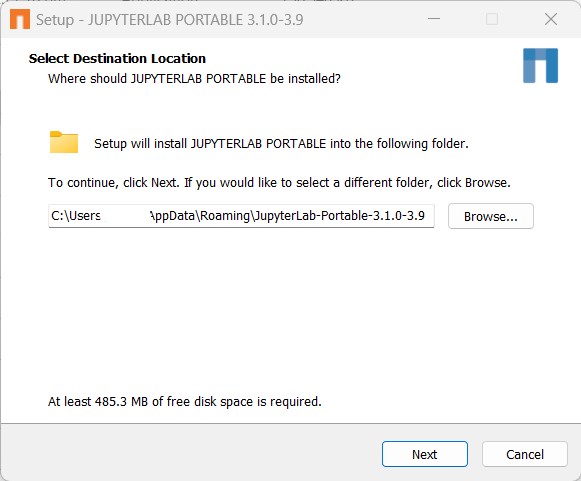
After launching the decompression, you can locate the folder where you indicated you wanted the files to be copied. When you open the folder, you have the following :
Top 5 Most
Popular
1. Compressor
Power Calculation
2. Pump Power Calculation
3. Pipe Pressure
Drop Calculation
4. Fluid Velocity in pipes
5. Churchill Correlation
(friction factor)
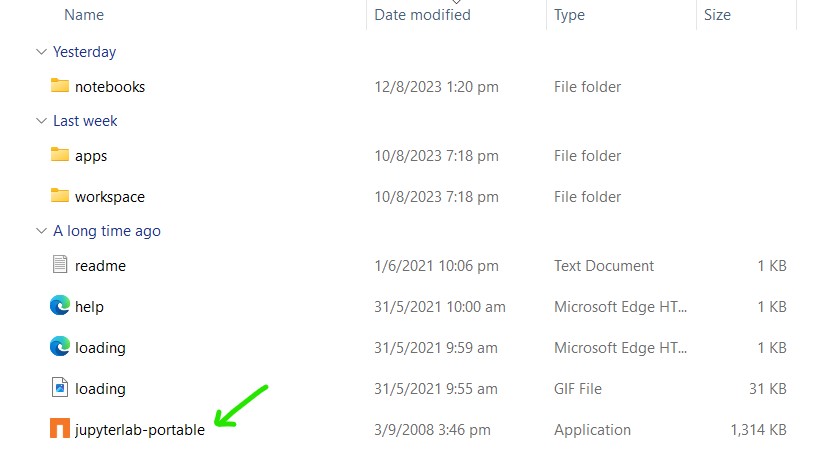
Once again, it is NOT an INSTALL, it is just a folder with files inside. From there you just have to click on the jupyerlab-portable executable file. This will launch a menu that you can access via the system tray.
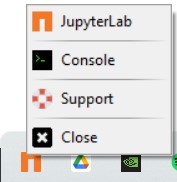
You can right click on the icon and then chose either to launch JUPYTERLAB Portable or launch the Python console. Note that in our test computer, we had 1st to launch the console, then launch JUPTERLAB Portable to reach the Jupyter-lab development environment.
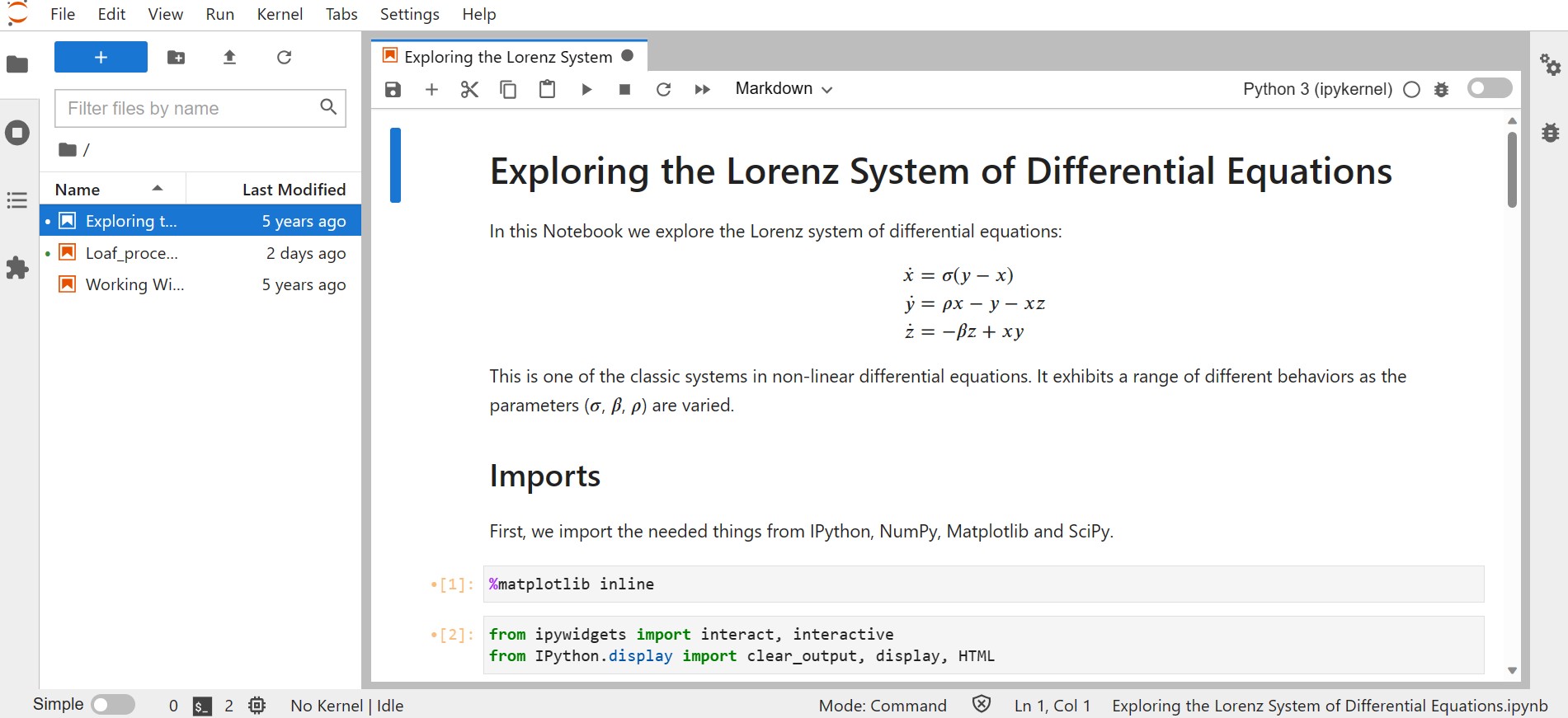
When it successfully launches, you just have the classic Jupyter-lab IDE and you can start programming !
4. Installing new libraries
The portable application is not a closed system it is actually possible to install new libraries if your development requires so. For this, open the console from the system tray icon (see above).
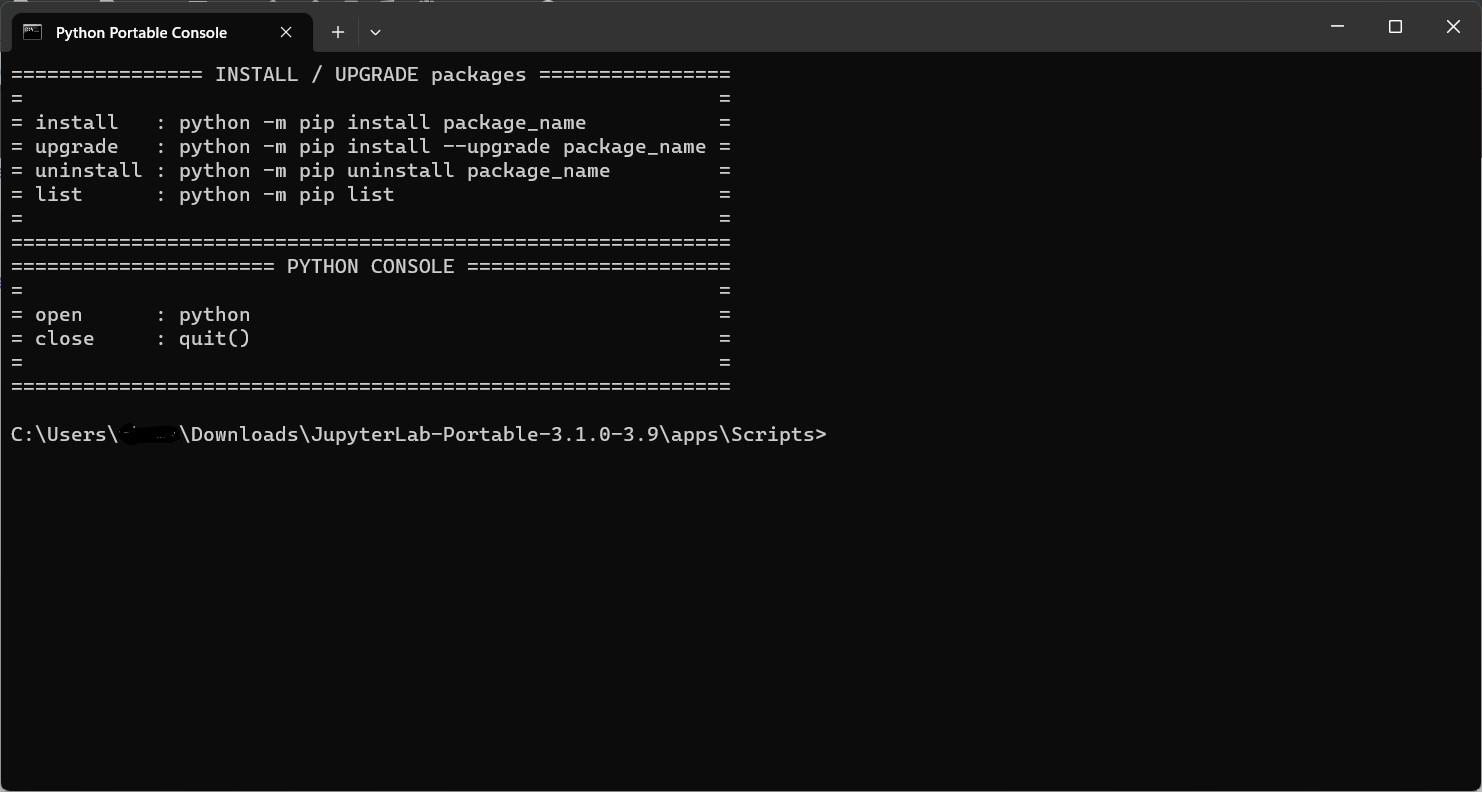
The console is directly showing which commands to use to install new packages using pip install, you can upgrade existing packages or install new ones. This is quite convenient.
5. Test and review
We found JUPYTERLAB Portable a very nice solution for anybody who don't want to make a full Python install. For regular job, not requiring a lot of calculation power it is definitively a good tool that even comes with a small interface (system tray) to facilitate launching the application. Its functionalities can also expand thanks to pip install that is made available through the console.
MyEngineeringTools.com note : 5*